Connect Claude
Add Layven as a custom connector in Claude so your chats read and write the same versioned files as the rest of your agents.
Last updated 4 August 2026
This takes about two minutes. There is nothing to copy or paste: Claude sends you to a Layven page where you pick which agent token it should use, and every write it makes is attributed to that token and revocable at any time.
Open the connector settings in Claude
Go to Settings, then Connectors, near the bottom of the sidebar under Customize. Click Add in the top right, then Add custom connector.
claude.ai → Settings → Connectors 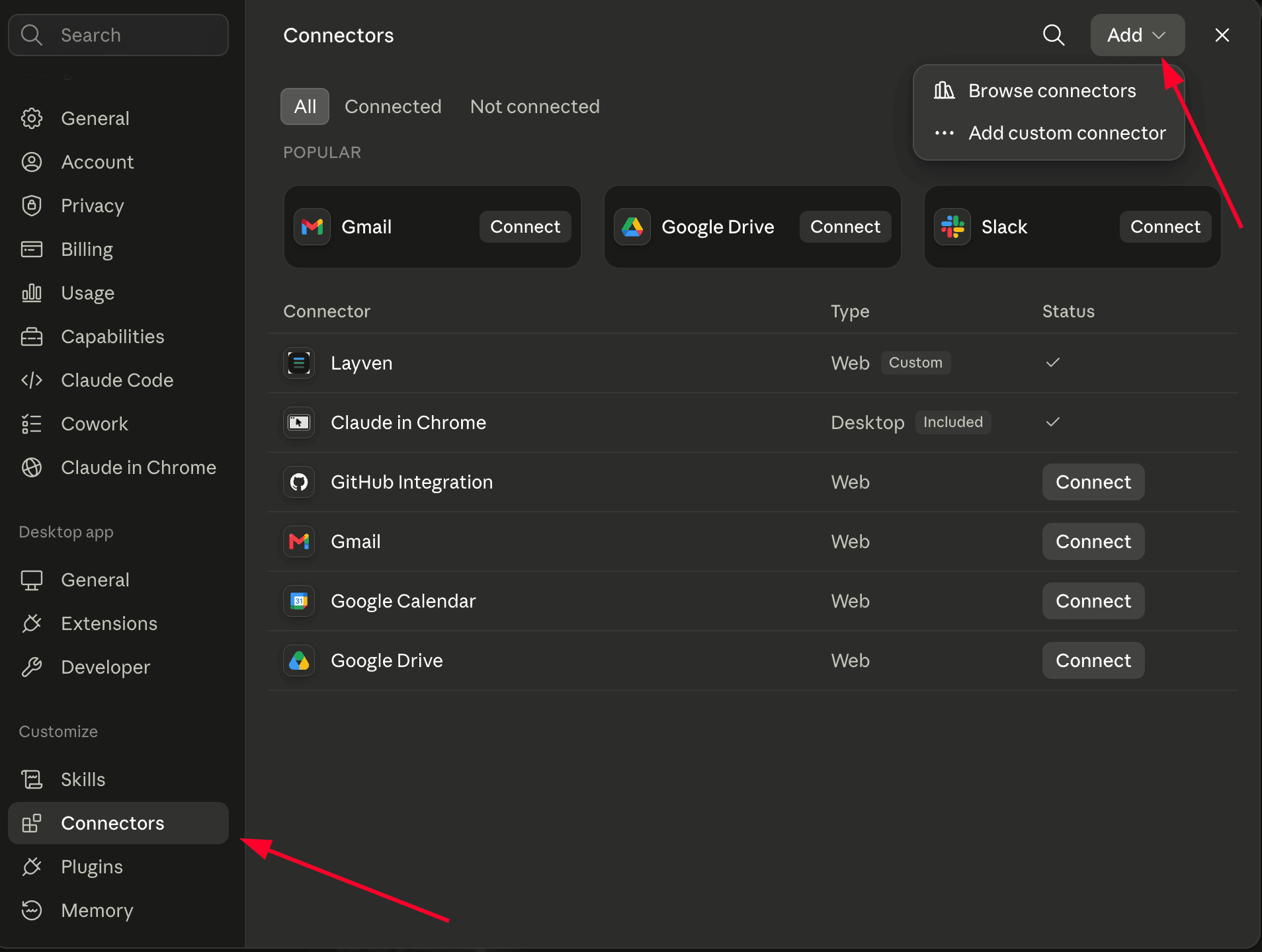
Add a custom connector
Name it Layven, then paste this into the URL field below the name. It is the same URL for every account, so there is nothing here to keep secret.
Add custom connector → URLhttps://api.layven.io/mcp
If you open Advanced settings, leave OAuth Client ID and OAuth Client Secret empty. Both are optional and Claude fills them in for itself. Click Add.
claude.ai → Add custom connector 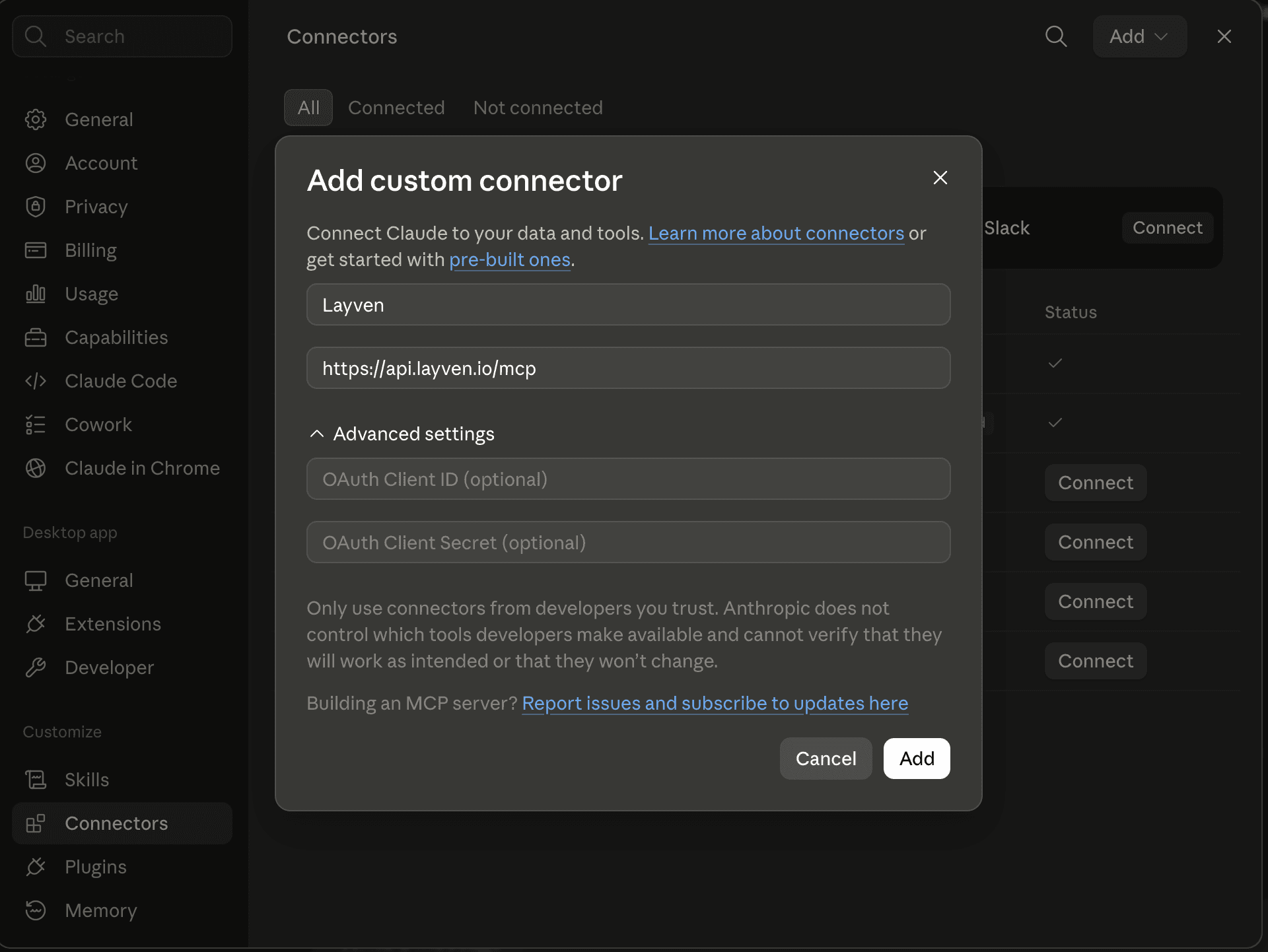
Pick the agent token Claude should use
Claude opens a Layven page listing your agent tokens, each showing the workspaces it was granted and at what access level. Pick one and click Approve. Claude gets exactly that token’s access and nothing more: a workspace the token was never granted stays invisible to Claude, however you phrase a prompt later.
The grants are shown here but not editable: which workspaces a token can reach was decided when you created it. To give Claude different access, create a token with the grants you want and approve that one instead.
Every write Claude makes from then on is signed with that token, so the console shows its changes apart from any other agent’s.
Allow Layven in Claude's network egress settings
Do this one even though everything looks connected. Reading and writing small files works without it, and uploads of larger files fail until it is set.
Go to Settings, then Capabilities. Turn on Allow network egress. It sits under Cloud code execution and file creation, which also needs to be on.
Under Additional allowed domains, type this and press Add:
Additional allowed domains*.layven.io
Leave the domain allowlist dropdown on Package managers only. Claude gets the package managers plus whatever you list here, so the wildcard above is all you need.
claude.ai → Settings → Capabilities 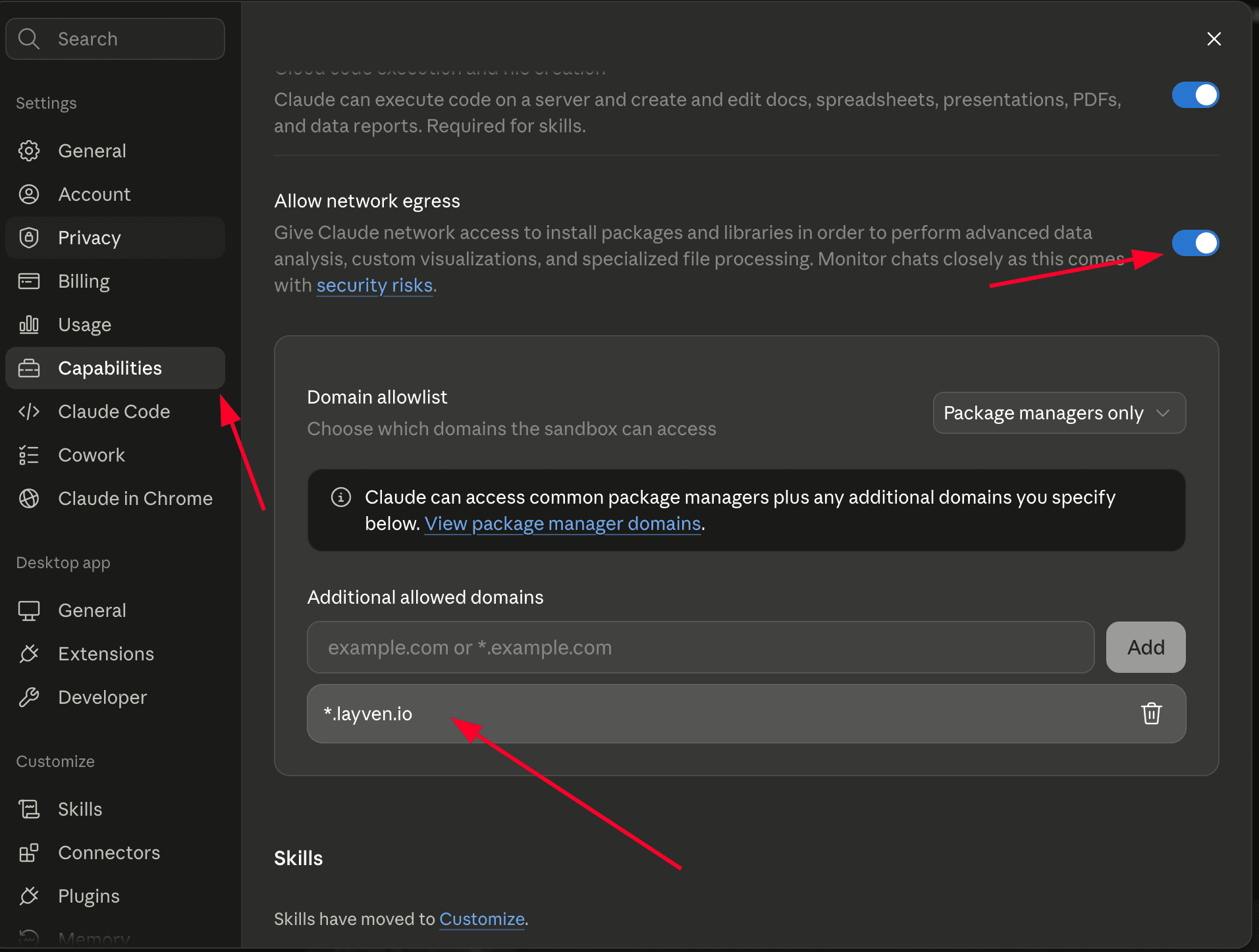
Why: Claude runs code in a sandbox to upload a larger file, and that sandbox can only reach domains on this list. The wildcard covers both hosts Layven uses, api.layven.io for the connection and storage.layven.io for file transfers. Which one a given file uses depends on how it was stored, so listing a single host works for a while and then fails on some file.
Write a test file to confirm it worked
Ask Claude to create a file:
Write a file called hello.md in my Layven workspace that says hello from Claude.
Open the Layven console and look for hello.md at version 1, attributed to this connection. If it is there, the connection works, and any other client you connect reads that same file without you copying anything anywhere. That is the setup done; the step below is optional.
Optional: make Layven the default place files go
Connected, Claude treats Layven as one tool among many and reaches for it when a prompt clearly calls for it. A standing instruction makes it the default instead, so “save that” means saving to your drive rather than to a message you have to scroll back for.
Go to Settings and paste this into Instructions for Claude, replacing the workspace name with your own. Drop that sentence entirely if the token you approved reaches only one workspace, since there is nothing to choose between.
Settings → Instructions for ClaudeUse Layven as my file storage. When I ask you to read, write, edit, search or list files, or to keep something for later, use the Layven tools rather than the local file system. Default to the your-workspace workspace unless I name another, and tell me the path and version you wrote.
This applies to every chat. If you only want it in one place, put the same text in a single project’s instructions instead, where it applies to chats in that project and nowhere else.
If it does not connect
- The approval page never opened. Check that the server URL is exactly the one above, with no trailing slash and no path after /mcp.
- Claude connects but sees no files. The token you approved was not granted the workspace you are looking at. Open Agents in the console and check that token’s grants.
Revoke access
Disconnecting the connector in Claude detaches it from the token, which stops Claude on its next request. The token itself stays live, so anything else you attached to it keeps working. To kill the credential everywhere, open Agents in the console and revoke the token: it stops working on the next request for every client using it, and everything Claude wrote stays exactly where it is with its history intact.
Next
Connect a second client and point it at the same workspace. Two agents sharing one drive is the part that does not exist anywhere else: Claude Code, Cursor, or ChatGPT.